
Decisions
AI-extracted decisions from meetings and coding sessions. Capture, review, edit, and embed decisions in your documents.
Stoa automatically extracts decisions from your meetings and coding sessions. Instead of decisions disappearing into chat logs and meeting notes, they're captured as structured, reviewable artifacts.
How Decisions Are Captured
During a session, the AI monitors:
- Spoken conversation (via live transcription)
- Workspace documents (files being edited)
- AI agent interactions (prompts and responses)
When the AI identifies a decision, it creates a decision record with:
- Title and rationale
- Owners (who is responsible)
- Confidence score (how certain the AI is)
- Source quotes (the original context that triggered the extraction)
- Session attribution (which session produced it)
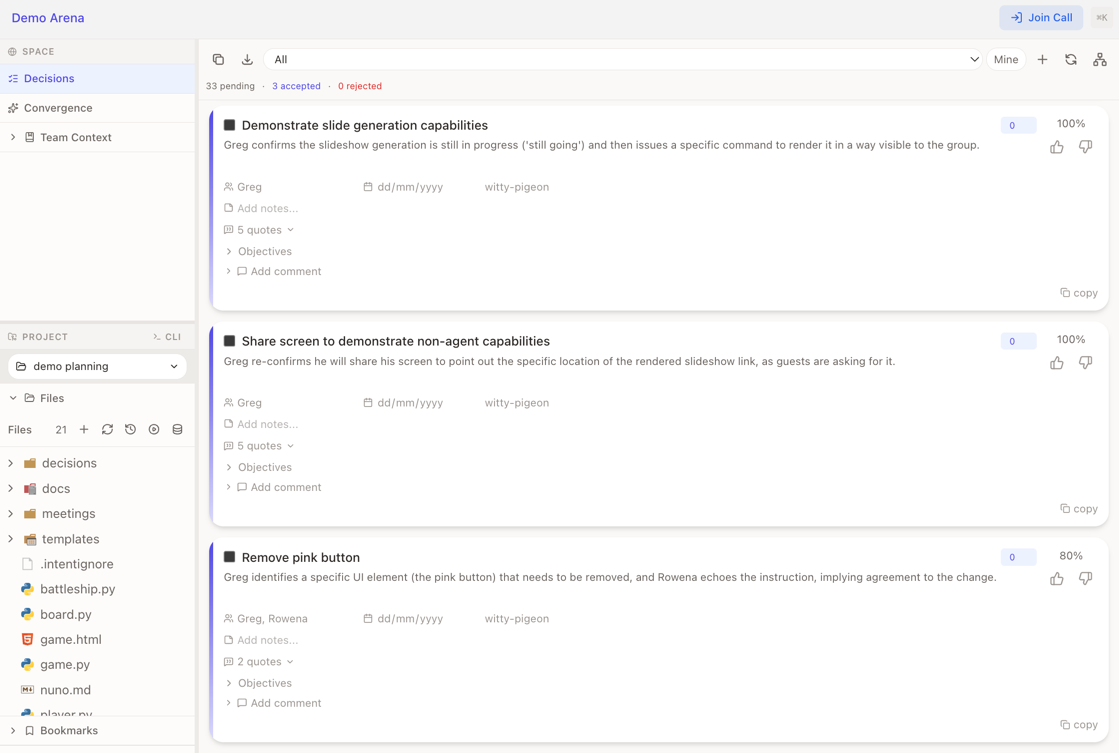
Decisions appear in the Decisions section of the left sidebar in real time.
Reviewing Decisions
Each decision card can be reviewed with one of three states:
| State | Icon | Meaning |
|---|---|---|
| Not Reviewed | Yellow indicator | Awaiting your review |
| Accepted | Green checkmark | Approved and tracked |
| Rejected | Red X | Dismissed |
Click the thumbs up or thumbs down button to accept or reject a decision. You can undo an accept/reject to return it to "not reviewed."
Tip
Editing any field on a decision automatically accepts it. This makes it easy to refine decisions as you review them.
Decision Fields
Every decision has the following fields, all editable inline:
| Field | Description |
|---|---|
| Title | Short description of the decision |
| Rationale | Why this decision was made |
| Owners | Comma-separated list of responsible people |
| Due Date | When it needs to be done (date picker) |
| Confidence | AI's confidence score, 0-100% (visual indicator) |
| Level | Importance tier: L1, L2, or L3 |
| Notes | Private notes about the decision |
| Completed | Checkbox to mark as done |
| Source Quotes | Expandable section showing original conversation context |
All fields auto-save when you click away.
Objectives
You can add objectives (sub-tasks) to any decision:
- Track completion status for each objective
- Manage action items that fall out of a decision
- Check off objectives as they're completed
Comments
Decisions support threaded comments:
- Team members can discuss a decision inline
- Comments are visible to all participants
- Useful for async follow-up after a session
Filters and Stats
Filtering
Filter the decisions list by:
- Review state: not reviewed, accepted, rejected, all
- Archive status: active or archived
- Owner: filter by assignee
- Sort order: by extracted date, curated date, level, or confidence
Stats Dashboard
The top of the Decisions panel shows:
| Stat | Description |
|---|---|
| Total | All decisions |
| Not Reviewed | Awaiting review |
| Accepted | Approved decisions |
| Rejected | Dismissed decisions |
| Archived | Hidden from main view |
| Completed | Marked as done |
Actions
Each decision card supports:
- Accept / Reject with thumbs up/down buttons
- Archive to hide from the main view
- Copy to copy decision text to clipboard
- View Source to expand and see original conversation quotes
- Edit for inline editing of all fields
Embedding Decisions in Documents
Decisions can be embedded directly in markdown files. When you embed a decision, it renders as an interactive card inside the editor.
Syntax:
![DECISION:content_hash]()The embedded card shows the decision title, rationale, and accept/reject buttons, so reviewers can act on decisions without leaving the document.
Decision Lifecycle
AI extracts decision → Not Reviewed → Accepted / Rejected
                                          ↓
                                     Edit fields
                                          ↓
                                   Add objectives
                                          ↓
                                   Mark completed
                                          ↓
                                      Archive
Note
The sidebar defaults to the Decision Topics view during active meetings. Decisions are still accessible via the command palette (G D) or direct navigation.