
Collaboration
How real-time collaboration works in Stoa — voice, video, live transcription, shared meeting notes, and the people panel.
Stoa includes built-in voice and video conferencing so you don't need a separate meeting tool. Every session includes transcription and meeting notes alongside the code editor.
Voice and Video
Joining a Call
Click "Join Call" in the workspace to enter the room. You can also join automatically with the ?join=true URL parameter.
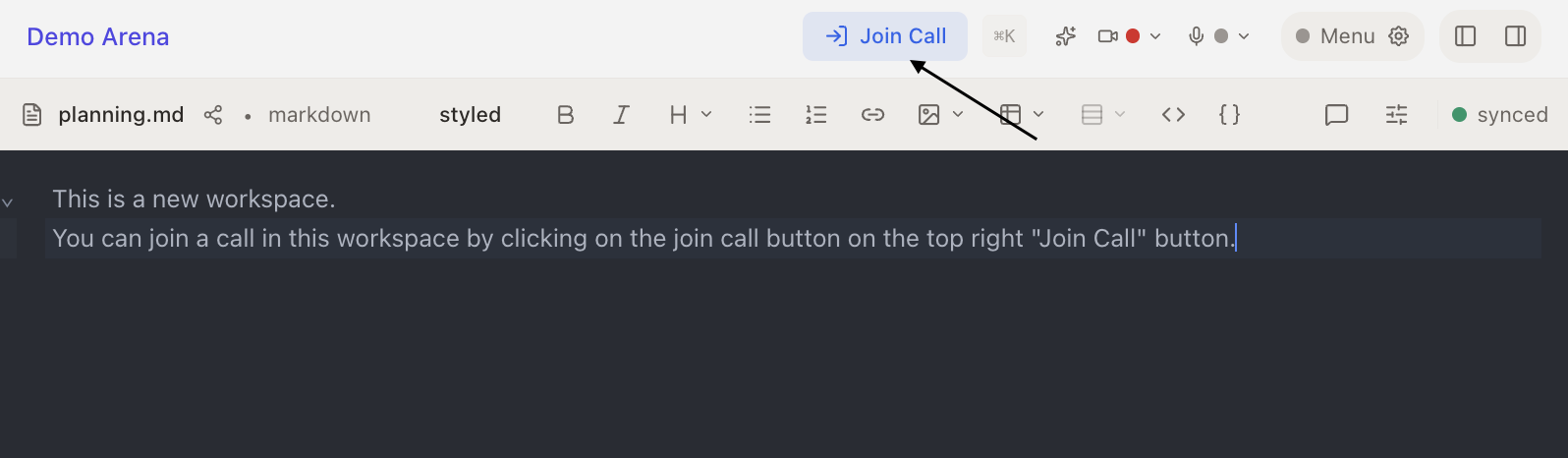
All participants in a Space share one room. Switching between projects within the Space doesn't disconnect you from the call. You can browse the workspace freely while staying connected.
Video Controls
| Control | Description |
|---|---|
| Microphone | Mute/unmute your mic. Click the dropdown arrow to switch audio input devices. |
| Camera | Toggle camera on/off. Click the dropdown arrow to switch cameras. |
| Background Blur | Blur your background during video calls (requires WebGL2 and WASM support) |
| Screen Share | Share your screen (via "more" menu) |
| Noise Filter | Toggle noise cancellation (via "more" menu) |
| Picture-in-Picture | Pop video out to a floating window (via "more" menu) |
| Leave | Disconnect from the call |
Device preferences (camera, microphone selection) are saved to your browser and remembered across sessions.
Video Layouts
The video panel adapts based on available space:
- Grid view shows all participants visible in a grid
- Filmstrip shows one large video with small thumbnails. Click a screen share tile in the filmstrip to expand it to full video mode.
- Compact mode is a minimal view when the panel is small
Audio Quality
Built-in audio processing:
- Echo cancellation prevents feedback loops
- Noise suppression removes background noise
- Auto gain control normalizes volume levels
Screen Sharing
Screen sharing is optimized for text clarity:
- VP9 with SVC for sharp text rendering
- H.264 fallback for Safari compatibility
- Participant's shared screen appears as a dedicated tile in the video grid
- In filmstrip view, click a screen share to expand it to full size
- A screen share indicator appears in the navigation bar while you're sharing, with a quick stop button
Room Lifecycle
- Rooms are created lazily. The LiveKit room only exists when the first user joins.
- When the last participant leaves, the room closes after 20 seconds
- If no one ever joins, the room is cleaned up after 5 minutes
Warning
If you navigate away from the workspace while in a call, you'll see a confirmation dialog warning that you'll be disconnected.
Live Transcription
Every session is transcribed automatically in real time.
How It Works
A transcription agent joins the LiveKit room automatically and processes speech-to-text for all participants. Transcription segments are batched and saved to the database every 2 seconds to reduce load.
What You See
- Real-time transcription appears in the Transcript tab of the meeting section
- Segments are grouped by speaker with timestamps and color coding
- Both interim (in-progress) and final (complete) transcripts are shown
- Late joiners see the conversation history (last 500 segments)
- Click "Load earlier" to paginate through older segments (100 at a time)
- Total transcript count is displayed
Transcript Download
You can download the full transcript from the Meeting panel. Downloads are paginated automatically to fetch all segments, even for long sessions with thousands of entries.
Speaker Context
Each transcript segment includes the speaker's current project and file context when available, helping you understand what they were looking at when they spoke.
Note
People and Transcript are only active when you're in a call. Notes remain tied to the current session even if you're not connected to the call.
Meeting Notes
Each session automatically creates a meeting notes markdown file in the workspace project. The AI writes structured notes as your meeting progresses, with labeled items for each detected topic: Intent, Decision, Implementation, Idea, and Open Question.
You can:
- Edit notes during the meeting (they're a regular markdown file)
- Review and update notes after the meeting
- Access notes from the Notes sub-section of the Meeting sidebar
People Panel
The People sub-section of the Meeting sidebar shows:
- Active participants with names and avatars
- Join and leave times
- Microphone and camera status indicators
- Screen share status
- Option to create guest invites (see Guest Access)
Note
Guest invite links can be created from the session menu in web and desktop. The People panel invite UI is currently desktop-only.
Share Notifications
Share files with specific teammates:
Notification Types
- File shares: share specific files with teammates
- @mentions: mention teammates in context
Reactions
Five emoji reactions are available on notifications:
- Thumbs up, Eyes, Party, Heart, Lightbulb
Users can toggle reactions on/off, and reaction counts are displayed.
Read Receipts
The system tracks when notifications are read:
- Unread notifications show colored borders and dot badges
- "Mark all read" bulk action is available
- Individual notifications are marked read on click
Search During Calls
On the desktop app, searching for meetings while you're in an active call opens results in a modal overlay instead of navigating away. This keeps you connected to the call while browsing past sessions.
Activity Feed
The Activity tab in the navigation ribbon shows your meeting history as a sortable table with columns for session name, Space, participants, date, duration, transcripts, topics, and cost.
You can:
- Search meetings using natural language. Semantic search finds meetings by meaning, not just keywords (e.g., "meetings about authentication" returns results even if the word "authentication" wasn't used).
- Filter by date range (7d, 30d, 90d, or custom), Space, participant, and whether the session has transcripts or topics.
- Sort by any column.
- Hide agent-only sessions (hidden by default, toggle to show).
Click any row to view the full session details. Share notifications also appear in this feed with an unread count badge.