
Overview
Documentation for Stoa, the live-session workspace that turns team collaboration into topics, provenance, and durable shared context.
Stoa is a collaborative workspace and CLI that captures what matters from your meetings and connects it directly to the code and documentation your team produces. Instead of writing follow-up docs or chasing context later, your team works inside sessions where voice, code, and the AI Notetaker live together.
You can trace any change back to the conversation that produced it, and the Notetaker keeps your project documentation up to date in real time. Six months from now, you can click on any line and see exactly why it was written.
How it works
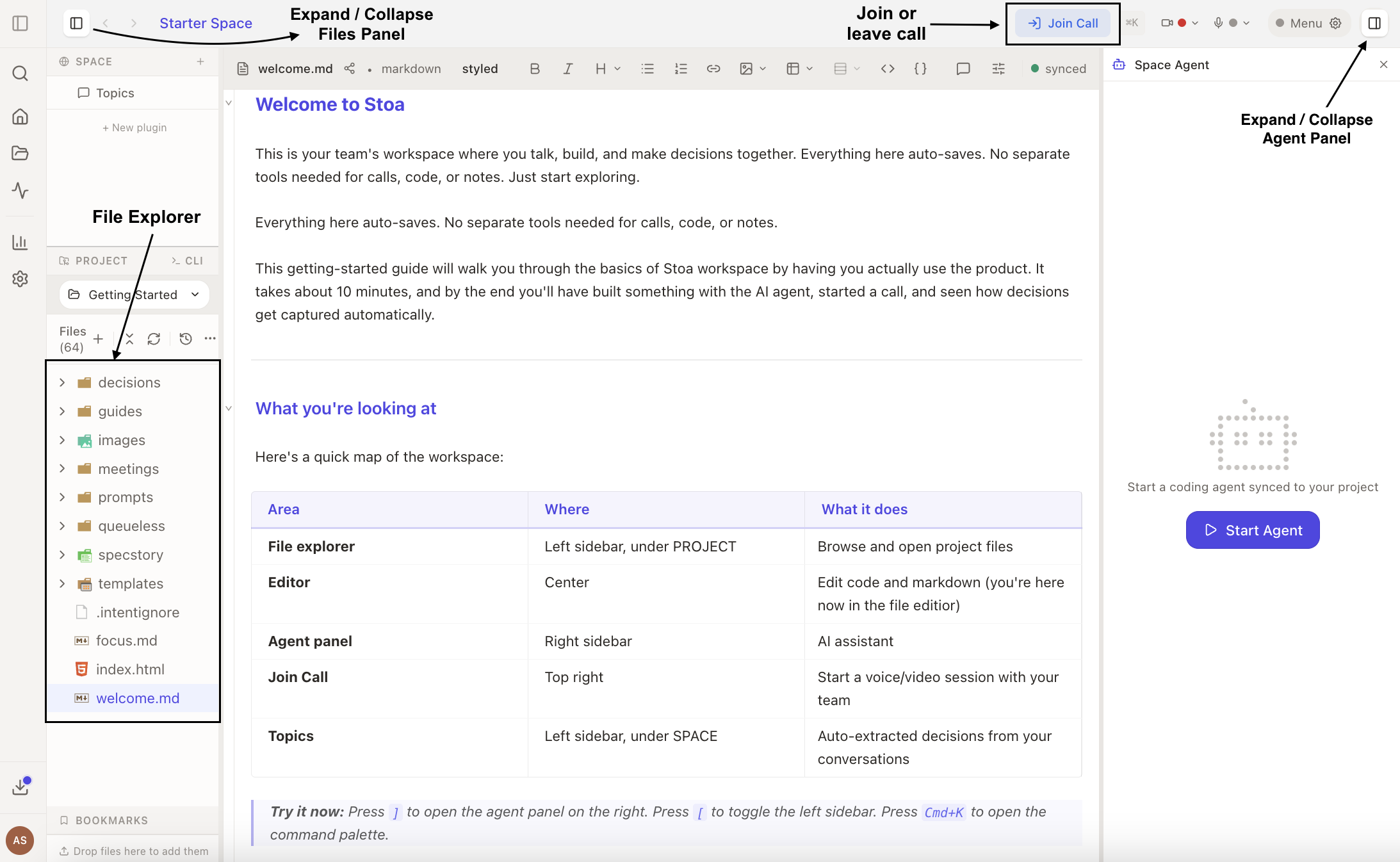
Stoa has three layers that work together:
Session capture
Records AI coding sessions and file changes so provenance is captured automatically.
Workspace
A shared space for voice, code, and the Notetaker where the team can build and review work together.
Local repo
Everything is stored locally in a .stoa/ folder inside your project unless you enable sync.
Core workflow
- Create a Space or open a project to route into a session workspace.
- Join the call so voice/video connects and meeting panels become active.
- Talk and build while the Notetaker captures topics in real time as you work.
- Review and apply topics to your Notetaker Docs, add notes, and invite guests as needed.
- Follow up locally using the CLI to inspect provenance and keep working in your editor.
Sessions and meeting artifacts
Work in Stoa happens inside sessions. Opening a Space routes you into the current session (or creates a new one), and joining the call connects voice and video. Each session includes:
- People and Transcript that are active when you're in a call
- Notes that stay tied to the session even after you disconnect
- Topics detected in real time from your conversation by the Notetaker, with coverage checking against your Notetaker Docs
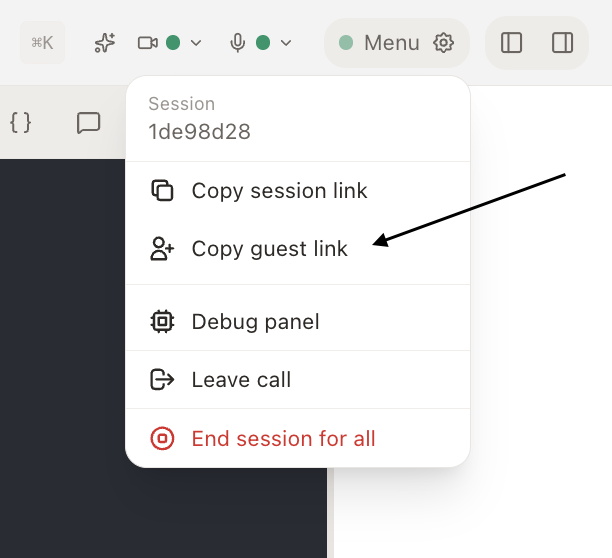
Guest invites are created from the session menu and are scoped to a session. The People panel invite UI is currently desktop-only.
Who uses Stoa?
- Product managers who run kickoffs, design reviews, and planning sessions and want meeting outcomes captured automatically.
- Engineers who need to trace why code exists and follow changes back to the conversation that produced them.
- Teams who want voice, code, and an AI Notetaker in one place without maintaining a separate knowledge base.
What you can do with it
- Keep docs up to date without extra work. The Notetaker captures topics from your meetings and applies them to your project documentation automatically. You don't need to take notes or update a wiki.
- See where your code came from. Every line of code is linked to the conversation that produced it, so you can trace a change back to the prompt or meeting that created it.
- Collaborate in real time. Edit code together with your team. Multiple people can work on the same file at once with no merge conflicts.
- Let the AI build during meetings. The Space Agent can write code, run it, and show live previews while your team discusses what to build.
- Review and apply topics. Topics detected from your meeting are compared against your Notetaker Docs. Apply new information to your docs with one click.
- Extend with plugins. Space Plugins let you add custom widgets, file renderers, and transcript processors using JavaScript files that live in your project and sync to all participants.
- Use voice to agent. Push-to-talk voice prompts are available when you're in a call, transcription is connected, and the agent is running.
- Share sessions with guests. Create session-scoped invite links so collaborators can join without full team access.
- Work in isolated branches. Episodes let you experiment in an isolated workspace (like a Git branch). Try something out, and merge it back if it works.
- Use the macOS desktop app. A native app with menu bar integration, system notifications, and drag-and-drop file support. Same features as the web, with a native feel.
Data and sync
Everything is stored locally in your project's .stoa/ directory by default. Cloud sync is optional and only happens when you enable it.